Partner Integration Guide
Foundry Pay is a hosted payment service. Your platform creates a payment request, the buyer completes payment inside a Foundry-hosted iframe (card entry, stored cards, or ACH), and Foundry notifies you via webhook when the buyer has completed it. Card data never passes through your servers.
For a concise endpoint-by-endpoint reference see the Partner API Reference.
Quick Start
- Receive your API key from Foundry Pay (one key per vendor/merchant).
POST /v1/payment-requests→ receiveiframeUrl.- Show the iframe to the buyer.
- Receive the
payment_request.completedwebhook when the buyer has completed payment.
Base URL
| Environment | API base URL | Checkout/iframe host |
|---|---|---|
| Production | https://pay.emun1.com |
https://checkout.pay.emun1.com |
| Nonprod (testing) | https://nonprod.pay.emun1.com |
https://checkout.nonprod.pay.emun1.com |
The checkout/iframe host is where every iframeUrl you receive resolves to, and where the JS SDK
(foundry-embed.js) is served from — it changes per environment exactly like the API host does.
Examples in this guide show the production checkout host; substitute the nonprod one from the table
above when testing against nonprod, including in the SDK <script src> tag.
All requests require:
Authorization: ApiKey <your-api-key>
Content-Type: application/json
Authentication
API keys are per-merchant. Every request made with your key is automatically scoped to your merchant account — you do not need to pass a merchant ID.
API keys are generated in the Foundry Pay merchant portal under API Keys.
Creating a Payment Request
POST /v1/payment-requests
Request body
{
  "referenceId": "ORD-20240601-001",
  "buyerEmail": "buyer@example.com",
  "amount": 312.50,
  "currency": "USD",
  "captureMode": "manual",
  "acceptedPaymentMethod": "card",
  "buyerCompany": "Acme Corp",
  "returnUrl": "https://yourapp.com/checkout/return",
  "billingAddress": {
    "street": "123 Main St",
    "houseNumberOrName": "Suite 400",
    "city": "Chicago",
    "stateOrProvince": "IL",
    "postalCode": "60601",
    "country": "US"
  },
  "lineItems": [
    {
      "id": "SKU-001",
      "description": "Widget A",
      "quantity": 2,
      "amountExcludingTax": 25000,
      "amountIncludingTax": 25000,
      "taxAmount": 0,
      "taxPercentage": 0,
      "upc": "012345678905",
      "brand": "Acme",
      "imageUrl": "https://yourapp.com/images/widget-a.png",
      "productUrl": "https://yourapp.com/products/widget-a"
    }
  ]
}
Fields
| Field | Required | Description |
|---|---|---|
referenceId |
Yes | Your order/invoice number. Returned in all webhooks. No length or format limit; if it's a machine key, see Order references. |
customerReference |
No | The purchase-order or document number Adyen gets for Level 2/3 interchange, in place of referenceId. 1–25 ASCII characters, not starting with a space, not all spaces or zeros; anything else is 400 invalid_customer_reference. See Order references. |
displayReference |
No | Up to 100 characters. What the buyer sees as the order reference, in place of referenceId. See Order references. |
amount |
Yes | Payment amount in dollars (e.g. 312.50). |
buyerEmail |
Yes | Buyer's email address. Finds the buyer's wallet, so previously saved cards appear in the drop-in for returning buyers. See Stored Payment Methods. |
externalBuyerId |
No | Your own ID for the buyer, 3–100 characters, so saved cards survive an email change. See Buyer IDs and email changes. |
currency |
No | ISO 4217 code. Defaults to "USD". "CAD" for vendors set up for CAD; see CAD payments. Any other code is 400 currency_not_supported. |
captureMode |
No | "manual" (default) or "immediate". See Capture Modes. |
acceptedPaymentMethod |
No | "card", "ach", or omit to allow the buyer to choose. Omitting is only recommended with captureMode: "immediate". |
buyerCompany |
No | Buyer's company name, shown alongside the payment request in the portal. |
returnUrl |
No | Where the iframe redirects after payment on mobile. Not required for embedded desktop flows. |
billingAddress |
No | Pre-populated in the card entry form (buyer can edit) and forwarded to the card network for AVS and Level 3 data. All fields optional; street, houseNumberOrName, city, stateOrProvince, postalCode, country. |
lineItems |
No | Order line items for Level 2/3 interchange qualification. Amounts in cents (e.g. 25000 = $250.00). The purchase-order reference for L2/L3 enrichment is your customerReference, or referenceId when it fits Adyen's 25-character limit (see Order references). id, description, quantity, amountIncludingTax, amountExcludingTax, taxAmount, taxPercentage, upc, brand, imageUrl, and productUrl are forwarded to Adyen's own line-items array; commodityCode, productCode, discountAmount, unitOfMeasure, and unitPrice are forwarded separately for L2/L3 enrichment (use commodityCode, not commodity — Adyen rejects that name outright). Other fields are stored but not sent. |
enhancedSchemeData |
No | Order-level Level 2/3 fields — freight, duty, tax, and shipping destination. See Enhanced Scheme Data in the API reference for the full field list. |
paymentMethodId |
No | Reuse a buyer's stored card instead of collecting one — the request comes back already Collected, no iframe needed. See Reusing a Stored Card. Not compatible with acceptedPaymentMethod: "ach". With captureMode: "immediate", the card is charged in this same call. |
Order references
A payment request has up to three references, each with its own job. The two optional ones fall back
to referenceId.
| Field | Used for |
|---|---|
referenceId |
Your key for the order: every webhook, the checkout iframe's completion message, batch capture by reference, and the vendor's portal. |
customerReference |
The purchase-order reference sent to Adyen for Level 2/3 interchange, the lower commercial-card rates. Without it, referenceId is sent when it's 25 ASCII characters or fewer, and nothing is sent when it isn't. Adyen requires the field for Level 2/3, so a payment without a valid one gets no Level 2/3 rate. |
displayReference |
What the buyer sees: the checkout page's order header and the payment-link, receipt, failed-payment and refund emails. |
If your referenceId is a machine key rather than a document number, send the document number in the
other two:
{
  "referenceId": "SALES_ORDER__12345__SO-1042",
  "customerReference": "SO-1042",
  "displayReference": "Sales Order SO-1042",
  "buyerEmail": "ap@buyer.example",
  "amount": 1250.00
}
Both are returned by GET /v1/payment-requests/{id} and the status endpoints, and a
card update keeps them from the original request.
CAD payments
A vendor set up for CAD can charge Canadian buyers in Canadian dollars: send "currency": "CAD", with
the amount in CAD. The buyer pays the CAD amount you send; they can't choose a currency at the checkout.
- Only for vendors set up for CAD. Anyone else gets
400 currency_not_enabled. Ask us to enable a vendor; until then, send USD. - Card only. ACH is USD only:
acceptedPaymentMethod: "ach"with CAD is400 ach_requires_usd, and a CAD request withoutacceptedPaymentMethodoffers card only. - Charging a stored card in CAD needs a
billingAddress(paymentMethodIdwith no buyer at the checkout); without one it's422 billing_address_required. The checkout collects the address itself. - Amounts stay in CAD: the request, captures, refunds and the
payment.capture_updatedwebhook all use CAD, withcurrency: "CAD". The vendor is paid out in USD at Adyen's rate on the day of capture. - A capture can be refused for a moment with
502 exchange_rate_unavailableif Adyen's rate service doesn't answer. Retry the capture shortly. - Any currency other than USD and CAD is
400 currency_not_supported.
Response
{
  "id": "3fa85f64-5717-4562-b3fc-2c963f66afa6",
  "token": "abc123xyz...",
  "iframeUrl": "https://checkout.pay.emun1.com/enter/abc123xyz...",
  "status": "Pending",
  "expiresAt": "2024-06-01T13:00:00Z"
}
Payment requests expire after 60 minutes. Create a new one if the buyer does not complete
payment in time. Emailing the buyer the payment link (POST /v1/payment-requests/{id}/send-link)
keeps that request open 7 days instead, with reminders while it's unpaid.
Creation is refused with 409 while the merchant can't take payments yet (onboarding not finished).
See Errors.
Showing the Payment UI
Desktop — embedded iframe
<iframe
  src="https://checkout.pay.emun1.com/enter/{token}"
  width="100%"
  height="600"
  frameborder="0"
  allow="payment"
></iframe>
Embedding integrity — what your page must not do. Your own page's JavaScript cannot read or
write anything inside the iframe — the browser enforces that regardless of how you embed it. The
one thing that is still under your page's control is the <iframe> element's own box, the same
way it would be for any element you place on your page. Don't use that control against the
integration:
- Don't set
opacity,pointer-events: none,visibility: hidden, or az-indexthat layers your own content above or below the iframe in a way that could misrepresent what the buyer is looking at or interacting with. - Don't render the iframe too small to show the full form. The checkout page doesn't report its height to your page (only the embed widgets below do, via the JS SDK), so size it generously.
- Don't proxy, cache, or rewrite the iframe's response — always load
srcdirectly fromcheckout.pay.emun1.com.
This is the one thing standing between "your PCI scope is limited to hosting an iframe" and "your
PCI scope now includes whatever your page did around that iframe." We also restrict which domains
are allowed to embed the checkout page at all, via a frame-ancestors policy scoped to your
registered origins — reach out if you need a new domain added to it. Nonprod already allows any
http://localhost:* origin, so local development and integration testing works without asking
us to register anything first; this allowance does not exist in production.
Have your server poll GET /v1/payment-requests/{token} every few seconds — it requires your
API key, so it must never be called from the browser — and have your own frontend poll (or
otherwise check with) your own backend to learn when to close/hide the iframe. Your server is the
only thing that should ever hold your API key; nothing Foundry-related should touch the browser.
Faster alternative: listen for the completion event. The iframe posts a message to its parent
window the instant the buyer finishes — no API key involved, since postMessage carries no
credentials, just an event:
// Your registered checkout origin — production shown; nonprod is checkout.nonprod.pay.emun1.com
const FOUNDRY_ORIGIN = 'https://checkout.pay.emun1.com';

window.addEventListener('message', (event) => {
  // Check BOTH before trusting the payload. Any page or iframe can post a message of this shape to
  // your window, so `event.data.type` alone proves nothing about who sent it.
  if (event.origin !== FOUNDRY_ORIGIN) return;
  if (event.source !== yourIframeElement.contentWindow) return;

  if (event.data?.type === 'foundry:complete') {
    // event.data.status          -> "collected"
    // event.data.referenceId     -> your own order/invoice number
    // event.data.paymentMethodId -> Foundry's internal reference for the card on file
    // event.data.brand           -> e.g. "mc"
    // event.data.last4           -> e.g. "4242"
    // event.data.holderName      -> e.g. "Jane Doe"
    // event.data.expiryMonth     -> e.g. 8
    // event.data.expiryYear      -> e.g. 2027
    // The buyer just finished — you already have the full card summary, no follow-up call needed.
  }
});
On the message's
targetOrigin. Foundry scopes this message to your page's own origin, derived fromdocument.referrer. If a strictReferrer-Policyon your page strips the referrer, it falls back to'*'— the message still reaches you either way, which is why theevent.originandevent.sourcechecks above are yours to make rather than something you can assume.
Fires when the buyer finishes entering the card — ahead of the webhook. That is the point of it:
payment_request.completed has to travel from Adyen to Foundry and out to you, while this is sent
from the page the buyer is looking at. Close or hide your modal on this event.
Keep the webhook as your source of truth for recording the payment. These answer different
questions: foundry:complete says the buyer is done and you can stop showing them a form;
payment_request.completed says Foundry has recorded it. Closing the window on the first and
booking the order on the second is the right shape.
This gives you everything in real time, entirely client-side — the card summary is included
directly, so you don't need a follow-up call to GET /v1/payment-requests/{id} just to learn
which card was used. That endpoint is still there if you're polling instead of listening for this
event, or if you need other fields from the payment request (billing address, line items, etc.).
First-time storage consent screen. The first time a given buyer stores a payment method with Foundry at all — buyer-global, across every merchant on the platform, not just yours — the iframe shows a brief, non-skippable consent screen (a disclosure plus a checkbox) before the card/ACH entry form — Foundry stores the payment method on every transaction, so this can't be Adyen's own optional Drop-in checkbox. It never appears again for that buyer afterward, on this or any other merchant's checkout or embed widget. If you embed with a fixed height rather than sizing dynamically, account for this extra step when testing the first-time flow.
Mobile — full-page redirect
window.location.href = iframeUrl;
returnUrlis not a completion signal, and must not be used as one. It is passed to Adyen as the payment session's return URL, so the buyer is sent there only when Adyen itself redirects them — a 3DS2 challenge, or a redirect-based payment method. A card entered with no challenge never navigates there at all: the buyer lands on Foundry's own confirmation screen ("Payment method saved", or "Payment complete"/"Payment submitted" withcaptureMode: "immediate"). So it fires for some buyers and not others, which makes it useless for deciding when a payment is done. Use thefoundry:completeevent above, or the webhook.
Set returnUrl so a buyer who is redirected out to a 3DS challenge comes back to your app rather
than to Foundry's default page. Add a query parameter to it (e.g. ?foundryComplete=1) so your page
knows to check with your own backend for the final status on load — your backend is what calls
Foundry (this still needs your API key), not the buyer's browser. Because the redirect is not
guaranteed, your app must also handle the buyer simply arriving back without it.
Native iPad and iPhone apps
Building in Swift rather than a browser? See Native iPad and iPhone Apps.
Checking Payment Status
GET /v1/payment-requests/{token}
Returns the current status of the payment request. Requires your API key, like every other endpoint in this guide — call it from your own server, never from the buyer's browser. If your frontend needs to know the status, have it ask your own backend, and have your backend be the one that calls Foundry.
{
  "id": "3fa85f64-...",
  "referenceId": "ORD-20240601-001",
  "status": "Collected",
  "completedAt": "2024-06-01T12:34:56Z"
}
| Status | Meaning |
|---|---|
Pending |
Waiting for buyer to complete payment. |
Collected |
Payment method collected. With "manual" capture, ready to authorize; with "immediate", the buyer has also been charged. |
Expired |
60-minute window passed without payment (7 days from the latest emailed link, if one was sent). Also signalled by the payment_request.expired webhook. |
Cancelled |
Retired with POST /v1/payment-requests/{id}/cancel (see Retiring a request). |
Recommendation: Use webhooks as the primary completion signal and polling only as a fallback for local development or environments without a public webhook URL.
Webhooks
Foundry Pay sends a POST to each of your configured webhook endpoints when payment events occur.
Configure your webhook endpoints
You can configure multiple webhook endpoints — every one receives every event type (there's no
per-endpoint filtering). Manage them in the merchant portal under Webhook Endpoints: add a URL
(with an optional label), and a signing secret is generated for that endpoint alone. Revoking one
endpoint doesn't affect any others. You can also manage them with your API key:
GET /v1/webhook-endpoints lists them, POST /v1/webhook-endpoints with
{ "url": "...", "label": "..." } adds one (its secret is in that response only), and
DELETE /v1/webhook-endpoints/{id} revokes one.
Partner-scoped endpoints. If you're a partner platform serving many merchants, a single
partner-scoped endpoint receives events for every merchant linked to your partner account — one
URL and one secret instead of one registration per merchant. Ask Foundry to register it; partner
endpoints aren't self-service, the same as partner API keys. Use the envelope's merchantId to
attribute each event.
A merchant shared with another platform. A vendor can work with more than one platform, for
example selling directly through one and through an agency on another. Each platform receives the
events for its own orders only: an order's events go to the partner whose key created it, plus the
merchant's own endpoints. Merchant-level events (merchant.onboarded, merchant.action_required) go
to every platform the merchant is linked to, each with that platform's own externalMerchantId.
Orders created without a partner key (by the merchant's own key or in the portal) go to every linked
platform, as before.
The two kinds compose: a merchant with their own endpoint, covered by a partner endpoint as well, sends to both — independently signed, independently retried. That's deliberate. A merchant's events often have consumers that aren't their platform partner (ERP sync, their own ops tooling), and a merchant shouldn't have to depend on a partner to subscribe to their own data.
If you're migrating from per-merchant endpoints to a partner endpoint, revoke then register, not the other way round — while both exist you'll receive every event twice, and not every handler is idempotent.
Envelope
Every webhook is wrapped in a common envelope:
{
  "eventType":  "payment_request.completed",
  "createdAt":  "2024-06-01T12:34:56Z",
  "merchantId": "3f2a9c1e-5b7d-4e8a-9c21-7d4e5f6a8b90",
  "data": { … }
}
merchantId identifies which of your merchants the event belongs to. It matters most on a
partner-scoped endpoint, where one stream carries every merchant you're linked to — card.enrolled
in particular carries only buyerEmail in its data, so merchantId is the only thing that
attributes it.
It is inside the envelope rather than in a header deliberately: the signature is computed over the raw
body, so merchantId is covered by it. A header would sit outside the signature.
Events
payment_request.completed
Fired when a buyer completes card entry in the iframe (manual or immediate capture mode).
{
  "eventType": "payment_request.completed",
  "createdAt": "…",
  "data": {
    "referenceId": "ORD-20240601-001",
    "paymentRequestId": "01a0d890-c74d-7b8c-8089-69ed35729c08",
    "status": "collected",
    "paymentMethodId": "3fa85f64-5717-4562-b3fc-2c963f66afa6",
    "last4": "4242",
    "brand": "mc",
    "holderName": "Jane Doe",
    "expiryMonth": 8,
    "expiryYear": 2027,
    "paymentMethodVariant": null
  }
}
paymentMethodId is the Foundry-internal identifier for the stored card — not a card number or
payment network token. It's useful as a stable reference for "this is the same card" across your own
records, and you can pass it to POST /v1/payment-requests later to charge the same card again (see
Reusing a Stored Card). To actually charge this payment request with
"manual" capture, use POST /v1/payments with the paymentRequestId you already have from
creating it — see End-to-End Example
in the API reference.
paymentRequestId identifies the specific payment request this event reports on. It matters when
more than one request exists against the same referenceId — which happens whenever an order is
re-raised after its card was collected, since the amount is fixed at collection time. Attribute on
paymentRequestId rather than on referenceId alone, and you never need a lookup to work out which
request a webhook is about.
payment_request.expired
Fired once when a payment request lapses without being collected. Use it to drive abandoned-checkout follow-ups or release held inventory.
{
  "eventType": "payment_request.expired",
  "createdAt": "…",
  "data": {
    "referenceId": "ORD-20240601-001",
    "paymentRequestId": "01a0d890-c74d-7b8c-8089-69ed35729c08",
    "status": "expired",
    "expiresAt": "2024-06-01T15:00:00Z"
  }
}
It arrives about an hour after expiresAt, not at it. expiresAt is the last moment a buyer can
open checkout, but a buyer who opened it just before then can still finish paying for a while
afterwards. Foundry waits until that window has closed, so you can treat an expired event as final. Polling
GET /v1/payment-requests/{token} can report expired sooner. Not sent for card-enrollment or
card-update requests.
card.enrolled
Fired when a buyer completes a card enrollment (from POST /v1/card-enrollments).
{
  "eventType": "card.enrolled",
  "createdAt": "…",
  "data": {
    "buyerReference": "BUYER-4521",
    "paymentRequestId": "01a0d890-c74d-7b8c-8089-69ed35729c08",
    "buyerEmail": "buyer@example.com",
    "paymentMethodId": "3fa85f64-5717-4562-b3fc-2c963f66afa6",
    "last4": "1111",
    "brand": "visa",
    "holderName": "Jane Doe",
    "expiryMonth": 3,
    "expiryYear": 2030,
    "paymentMethodVariant": null
  }
}
card.updated
Fired when a buyer completes a card refresh (from POST /v1/payment-requests/{id}/card-update).
The referenced payment request now has the new card stored and is ready to re-authorize.
{
  "eventType": "card.updated",
  "createdAt": "…",
  "data": {
    "referenceId": "ORD-20240601-001",
    "paymentRequestId": "01a0d890-c74d-7b8c-8089-69ed35729c08",
    "paymentMethodId": "7c4a9e1d-...",
    "last4": "4242",
    "brand": "mastercard",
    "holderName": "Jane Doe",
    "expiryMonth": 8,
    "expiryYear": 2027,
    "paymentMethodVariant": null
  }
}
holderName, expiryMonth, expiryYear, and paymentMethodVariant (Adyen's premium/commercial
card sub-type, e.g. "visabusiness") are consistent across all three card-carrying events above —
none of these are PCI-sensitive on their own (no PAN, no CVV, no track data); Foundry never stores
the full card number. paymentMethodVariant is null when Adyen doesn't report one for the card.
payment.capture_updated
Fired when Adyen settles a capture, confirming or refusing it. This is the event that tells you a capture you were told succeeded did not.
{
  "eventType": "payment.capture_updated",
  "createdAt": "…",
  "merchantId": "3f2a9c1e-5b7d-4e8a-9c21-7d4e5f6a8b90",
  "data": {
    "referenceId":       "ORD-20240601-001",
    "paymentId":         "01a0d892-...",
    "captureId":         "9b1f3e77-...",
    "status":            "failed",
    "amount":            90.50,
    "currency":          "USD",
    "shipmentReference": "SHIP-2",
    "failureReason":     "Authorisation already cancelled",
    "paymentStatus":     "PartiallyCaptured",
    "capturedAmount":    55.50,
    "remainingAmount":   160.50
  }
}
status is "confirmed" or "failed". capturedAmount, remainingAmount and paymentStatus
describe the payment after this capture was accounted for, so a single message tells you both
what changed and what is now true — you don't need to call back for the totals. failureReason is
the processor's own wording when status is "failed", and null otherwise — a human-readable
diagnostic, not a stable enum.
Both outcomes fire. A stream carrying only failures can't distinguish "confirmed" from "not heard back yet".
POST /capture returning 200 is not the end of the story. A 200 means Adyen accepted the
capture request and Foundry recorded it; Adyen settles it asynchronously and can still refuse it
minutes or hours later. The capturedAmount in a capture response is therefore a running total of
captures accepted so far, not captures that have settled.
If you compute shipment increments as (value shipped) − (already captured), subtract
capturedAmount, not a sum of settled captures. capturedAmount counts every capture that has not
been refused, including one still in flight, so an increment computed from it cannot re-capture money
that is already on its way. It also self-corrects: when Adyen refuses a capture, that amount drops
back out, and the next shipment's increment naturally re-captures it with no special handling.
Summing only confirmed captures would exclude an in-flight one and double-capture inside the
settlement window — the worse direction to fail in.
payment.charged_back
Fired when a captured payment is disputed: a card chargeback, or a returned ACH debit (kind
chargeback or ach_return). stage says how far it has gone (notice, chargeback,
second_chargeback), each sent once, with the amount, the reason code (an R code for ACH) and the
payment's status. payment.chargeback_reversed follows if it's reversed in the merchant's favour. See
payment.charged_back for the payload.
merchant.onboarded
Fired when a merchant completes Adyen onboarding and becomes able to transact. Until this arrives,
creating a payment request or authorizing a payment for that merchant is refused with 409 and
"status": "OnboardingIncomplete" (see Errors). Sent once
per change, however Foundry learned of it — Adyen's notification, or the merchant's or an admin's
portal noticing first. Foundry also emails the merchant that their account is ready.
{
  "eventType": "merchant.onboarded",
  "createdAt": "…",
  "data": {
    "merchantId": "3f2a9c1e-5b7d-4e8a-9c21-7d4e5f6a8b90",
    "externalMerchantId": "MT-VENDOR-4410",
    "status": "active"
  }
}
merchant.action_required
Fired when a merchant's onboarding moves to a state needing their attention — typically Adyen asking
for more documentation. status carries the new state.
{
  "eventType": "merchant.action_required",
  "createdAt": "…",
  "data": {
    "merchantId": "3f2a9c1e-5b7d-4e8a-9c21-7d4e5f6a8b90",
    "externalMerchantId": "MT-VENDOR-4410",
    "status": "pending"
  }
}
Both fire on every onboarding status change, so a merchant may produce several over the course of
onboarding. They are the only two events that repeat merchantId inside data — every event carries
it in the envelope, and the rest identify their subject by your own referenceId or by buyerEmail.
Both also carry externalMerchantId: your own ID for the merchant as set on it in Foundry, or null
if none was set, so you can match the event to your merchant record directly. If the merchant also works with
another platform under a different ID, you still receive yours. You can also use that ID to name the
merchant in API calls: send X-External-Merchant-Id instead of X-Merchant-Id (see the API reference,
"Partner-scoped API keys").
Correcting an order total after the card is collected
A payment request's amount is fixed when the buyer enters their card, and the authorization is made against it. If the order changes before you ship — a quantity is adjusted, a line is added — amend the request rather than raising a second one:
PATCH /v1/payment-requests/{id}
{ "amount": 900.00 }
It is refused once a payment exists, so a merchant on immediate capture simply cannot amend and finds out synchronously. Full contract in the API Reference.
This is distinct from adding a charge. Freight discovered after checkout is a charge; the order being worth more is an amendment. Keeping them apart is what lets you tell the two apart later.
Retiring a request that will never be paid
An abandoned checkout or a cancelled order leaves a payment request sitting there looking like money waiting to be taken. Retire it:
POST /v1/payment-requests/{id}/cancel
Refused once a payment exists — at that point void or refund the payment instead. It retires the request only: a card already collected against it stays stored and consented.
Capture statuses
GET /v1/payments/{id} returns a captures array whose entries each carry one of:
| Status | Meaning |
|---|---|
Pending |
Adyen accepted the capture. It has not settled yet and can still be refused. |
Confirmed |
Adyen settled it. confirmedAt is when. |
Failed |
Adyen refused it. The amount is no longer in capturedAmount. |
Use these to explain a number, not to compute one — capturedAmount is the figure to do arithmetic
with, for the reason above. A capture sits in Pending for as long as Adyen takes to settle it.
Verifying webhook signatures
Every webhook includes an X-Foundry-Signature header:
X-Foundry-Signature: sha256=<hex-digest>
Verify it with that endpoint's own secret (shown once when you add the endpoint — store it securely; each endpoint has its own independent secret, so a request's signature is only valid against the secret for the endpoint it was actually sent to):
import hmac, hashlib

def verify_signature(secret: str, body: bytes, header: str) -> bool:
    expected = "sha256=" + hmac.new(
        secret.encode(), body, hashlib.sha256
    ).hexdigest()
    return hmac.compare_digest(expected, header)
bool VerifySignature(string secret, byte[] body, string header)
{
    using var hmac = new HMACSHA256(Encoding.UTF8.GetBytes(secret));
    var digest = "sha256=" + Convert.ToHexString(hmac.ComputeHash(body)).ToLower();
    return CryptographicOperations.FixedTimeEquals(
        Encoding.UTF8.GetBytes(digest),
        Encoding.UTF8.GetBytes(header));
}
Always use a constant-time comparison to prevent timing attacks. Reject requests where the signature does not match.
Webhook delivery
Foundry Pay retries a failed delivery for up to 3 days after the event, per endpoint: three
attempts about three minutes apart, then after 15 minutes, 1, 3 and 6 hours, and every 12 hours after.
Respond with any 2xx status within 10 seconds to acknowledge receipt; anything else, or no response
in time, counts as a failed attempt — so an event you processed but acknowledged too slowly is sent
again; make your handler idempotent. While your endpoint is down, Foundry makes one attempt per retry
run rather than one per waiting event, oldest first. Events can arrive out of order after an outage, so
order them by the envelope's createdAt. After 3 days a delivery is given up; it can be sent again with
Resend in the portal (the merchant's Webhook Endpoints page, or the partner's page for admins).
Capture Modes
"manual" (default — order checkout)
The iframe tokenizes the card or bank account with a zero-dollar authorization — this works the same way for both card and ACH. No money moves until your merchant account explicitly authorizes and captures the payment in the Foundry Pay portal.
Use this for order workflows where you want to review and fulfill before charging.
{
  "referenceId": "ORD-001",
  "buyerEmail": "buyer@example.com",
  "amount": 312.50,
  "captureMode": "manual",
  "acceptedPaymentMethod": "card"
}
The same works for ACH — just set "acceptedPaymentMethod": "ach" (or omit it to let the buyer
choose either at payment time). The bank account is tokenized with no debit; your merchant account
authorizes and captures later, exactly like the card flow above.
Split-shipment multi-capture
For orders shipped in multiple stages, the full authorized amount can be captured in multiple partial captures — one per shipment. The payment moves to Partially Captured after each partial capture and becomes Captured once the full authorized amount is settled.
Cards only. ACH payments can only be captured in full. Adyen doesn't accept a second capture on
an ACH payment, so a partial capture would release the rest of the authorization. A partial capture
request on an ACH payment is refused with HTTP 400 and "code": "ach_partial_capture" (or, in
batch-capture, a failed item), and nothing is sent to Adyen.
From the portal: click Capture on an authorized or partially captured payment, enter the amount for the current shipment, add an optional shipment reference, and confirm. Repeat for each subsequent shipment.
Via the single-capture API, POST /v1/payments/{id}/capture takes the same two fields:
{ "amount": 150.00, "shipmentReference": "SHIP-A" }
Each capture can optionally carry the line items it covers, with its freight and tax, so the shipment
qualifies for lower Level 2/3 card interchange: add lineItems and enhancedSchemeData in the payment
request's shape. Without them a partial capture works as before but gets no Level 2/3. See
Level 2/3 on partial captures.
Via the batch-capture API: include amount and optionally shipmentReference per item (and, optionally,
lineItems and enhancedSchemeData):
{
  "items": [
    { "referenceId": "ORD-001", "amount": 150.00, "shipmentReference": "SHIP-A" },
    { "referenceId": "ORD-002", "amount": 312.50 }
  ]
}
"immediate" (invoice payments)
The checkout itself charges the full amount while the buyer is present, and Foundry captures it automatically, usually within seconds. Money moves when the buyer submits — no portal action required. Use this for invoice payments or any flow where you want funds captured at the point of collection.
On success the checkout tells the buyer "Payment complete" — or "Payment submitted" for a
bank payment, which takes a few business days to clear — rather than the "Payment method saved"
screen shown with "manual" capture.
{
  "referenceId": "INV-2024-005",
  "buyerEmail": "buyer@example.com",
  "amount": 875.00,
  "captureMode": "immediate"
}
When captureMode is "immediate" and acceptedPaymentMethod is omitted, the drop-in
presents both card and ACH options. The buyer chooses at payment time — both are settled
immediately.
ACH direct debit
ACH follows the same two capture modes as card (see above) — "manual" (default, zero-dollar
tokenize; your merchant authorizes and captures later) or "immediate" (bank debit occurs within
the payment session, no portal action needed). Request ACH explicitly, or omit
acceptedPaymentMethod to let the buyer choose either:
{
  "referenceId": "ORD-001",
  "buyerEmail": "buyer@example.com",
  "amount": 312.50,
  "acceptedPaymentMethod": "ach"
}
Note: ACH settlement is asynchronous at the bank level (
resultCode: "Received"). For immediate capture, thepayment_request.completedwebhook fires as soon as the debit is initiated, not once it actually settles — actual bank settlement typically occurs within 1–3 business days, and chargebacks can occur up to 60 days after the debit. For manual capture, the same async settlement applies once your merchant account clicks Authorize and Capture.ACH Company ID — tell business buyers. Many business bank accounts block or filter ACH debits from originators they don't recognise. A blocked debit is returned (typically R29), and Foundry receives it as a chargeback on the payment. Buyers paying by bank account should ask their bank to allow our payment processor's ACH Company ID,
8263863381. Foundry's checkout and payment-link email already say so wherever ACH is offered; if you show buyers your own payment instructions or invoices, include it there too.
Stored Payment Methods
A buyer's saved cards are one wallet, shared by every vendor and platform, and found by the buyer's
email. When buyerEmail is provided, the buyer's previously saved cards appear in the drop-in for
one-click payment on return visits, including cards they saved with other vendors. A wallet keeps
every email it has had, so an older address still finds it.
Stored payment methods are managed entirely within Foundry Pay — your platform never sees card numbers, CVVs, or payment network tokens.
Listing a Buyer's Saved Cards
To fill your own card picker, for example when a sales rep picks a card on file for an order, list the buyer's whole wallet:
GET /v1/payment-methods?buyerEmail=buyer@example.com
It returns every active card and bank account the buyer has saved through any vendor, with its
paymentMethodId, brand, last 4, expiry and holder name: never a card number or token. You can look
the buyer up by your own externalBuyerId instead. A customer's savedPaymentMethods on
GET /v1/customers/{buyerId} is narrower: only cards saved with, or charged by, that vendor. See
List a Buyer's Saved Payment Methods.
Buyer IDs and email changes
Wallets are found by email ignoring capitalisation, so Bob@Shop.com and bob@shop.com are the same
buyer; you don't need to normalise emails yourself.
If your buyers can change their email, also send externalBuyerId, your own ID for the buyer, on
payment requests, card enrollments, card migrations and embed sessions. The first time, it's linked to
the wallet of the email sent with it. When a later call sends the same ID with a new email, the new
email becomes the wallet's current one, its saved cards stay with it, and the old email keeps working
for anyone still using it. Several of your IDs sent with the same email share that wallet, so a buyer
you have under more than one ID sees the same cards under each. Without externalBuyerId, nothing
changes: the wallet is found by email.
The ID must mean one person, never an account several buyers share, or they'd share one wallet. To
retire an address the buyer no longer controls, call POST /v1/customers/change-email (partner keys).
See Your Own Buyer IDs for the rules and errors.
Reusing a Stored Card
If you already have a paymentMethodId on file for a buyer — from an earlier card.enrolled
webhook, or from a previous payment request's detail response — pass it to POST
/v1/payment-requests to charge that same card again with no buyer interaction at all:
{
"referenceId": "ORD-20240815-002",
"buyerEmail": "buyer@example.com",
"amount": 89.00,
"paymentMethodId": "3fa85f64-5717-4562-b3fc-2c963f66afa6"
}
The request comes back already "status": "Collected" — skip the iframe entirely and go straight
to POST /v1/payments (then POST /v1/payments/{id}/capture for manual capture) whenever you're
ready to actually charge it. No payment_request.completed webhook is sent for a request created
this way; the create response is your confirmation.
To charge the card right away instead, add "captureMode": "immediate": Foundry authorizes and
captures inside the same call and returns paymentId and paymentStatus in the response. See
Create a Payment Request in the API reference.
Requirements:
- buyerEmail must be one of the emails of the wallet the paymentMethodId belongs to — a mismatch
returns 400. A stored card belongs to the buyer, not to the merchant who first collected it, so
knowing the buyer's email is the check. Send externalBuyerId too, so an email change in your system
doesn't turn into this 400.
- An unknown paymentMethodId returns 404; a card the buyer has removed returns 400.
- acceptedPaymentMethod: "ach" isn't supported together with paymentMethodId.
Card Enrollment (Store a Card Without an Order)
Use card enrollment when you want to save a buyer's card on file before any specific order or invoice exists — for example, when onboarding a new account or when a sales rep wants to set up payment for a buyer in advance.
POST /v1/card-enrollments
Request body
{
"buyerEmail": "buyer@example.com",
"buyerReference": "BUYER-4521",
"buyerCompany": "Acme Wholesale",
"billingAddress": {
"street": "123 Main St",
"city": "Chicago",
"stateOrProvince": "IL",
"postalCode": "60601",
"country": "US"
}
}
| Field | Required | Description |
|---|---|---|
buyerEmail |
Yes | Buyer's email address. Finds the buyer's wallet for returning buyers. |
externalBuyerId |
No | Your own ID for the buyer; see Buyer IDs and email changes. |
buyerReference |
No | Your own buyer or account ID — a fully opaque string. Foundry never parses or interprets it (no assumptions about retailer/buyer encoding, prefixes, etc.); it's stored as-is and returned verbatim in the card.enrolled webhook for you to correlate the new card back to whatever it identifies on your side. |
buyerCompany |
No | Company name (for display purposes). |
billingAddress |
No | Pre-populated in the card entry form; buyer can edit. |
returnUrl |
No | Passed to Adyen as the payment session's return URL — where the buyer lands if Adyen redirects them (3DS challenge). Not a completion signal; see the note under "Mobile — full-page redirect". |
Response
{
"id": "3fa85f64-5717-4562-b3fc-2c963f66afa6",
"token": "abc123xyz...",
"iframeUrl": "https://checkout.pay.emun1.com/enter/abc123xyz...",
"expiresAt": "2024-06-01T13:00:00Z"
}
Show the iframeUrl to the buyer in the same way as a payment request. When the buyer submits
their card, you receive a card.enrolled webhook containing the paymentMethodId — store this as
your own reference for "this buyer has a card on file." To charge it later, pass it to
POST /v1/payment-requests as paymentMethodId (see Reusing a Stored
Card below) — the request is created already Collected, with no buyer
interaction needed. paymentMethodId alone never charges anything by itself; you still call
POST /v1/payments to actually authorize.
Enrollment sessions expire after 60 minutes.
Card Refresh (Update a Card After Authorization Failure)
When an authorization attempt fails because the stored card has expired or been declined, you can send the buyer a link to enter a replacement card. Once submitted, the new card is automatically associated with the original payment request so you can immediately retry authorization.
POST /v1/payment-requests/{id}/card-update
| Field | Required | Description |
|---|---|---|
returnUrl |
No | Passed to Adyen as the payment session's return URL — where the buyer lands if Adyen redirects them (3DS challenge). Not a completion signal; see the note under "Mobile — full-page redirect". |
Response
{
  "id": "9b1b3a2e-...",
  "token": "xyz789...",
  "iframeUrl": "https://checkout.pay.emun1.com/enter/xyz789...",
  "expiresAt": "2024-06-01T14:00:00Z"
}
Send the iframeUrl to the buyer via email or SMS. When the buyer submits the new card:
1. The payment request's stored card is replaced with the new one.
2. You receive a card.updated webhook.
3. Re-call POST /v1/payments (or batch-authorize) with the same reference — the new card is
used automatically.
The checkout asks for a new card; the buyer's saved cards aren't offered. Card update sessions expire after 60 minutes. Only Collected payment requests are eligible.
Embeddable UI Components
Foundry Pay provides embeddable components you can drop into your own application UI without writing any data-fetching or display code. They render inside a Foundry-hosted iframe (same cross-origin model as the payment iframe), so your platform stays out of PCI scope.
| Component | What it shows |
|---|---|
| Transaction history | All payments for a given referenceId — status, amount, card brand/last4, date |
| Payment method management | Stored cards for a given buyer — view, remove, and add a new card |
| Add card only | Just the tokenize-a-new-card form — no visibility into or ability to remove the buyer's other stored cards. Use this if you already have your own UI for showing/picking a buyer's saved cards and only want Foundry for tokenization. |
| Merchant dashboard | The merchant's full dashboard — captured/net volume, balance, daily volume chart, payment method mix, and the transactions/disputes/payouts/reports components |
| Onboarding status | The merchant's onboarding progress, what they still need to do in plain language (for example "Upload a recent bank statement for your payout account"), whether Adyen is still reviewing, and a button to (re)launch Adyen's hosted onboarding if it isn't finished |
How it works
- Your server calls
POST /v1/embed-sessions(with your API key) and receives a short-lived embed token. - Your frontend passes that token to the JS SDK — the API key never touches the browser.
- The SDK creates the iframe and handles resize and event forwarding automatically.
Your server  ──►  POST /v1/embed-sessions  ──►  { token: "em_abc..." }
Your browser ──►  FoundryEmbed.mount('#el', 'em_abc...')
                  └─ <iframe src="https://checkout.pay.emun1.com/embed/em_abc...">
Creating an embed session
POST /v1/embed-sessions
Authorization: ApiKey <your-api-key>
Transaction history session
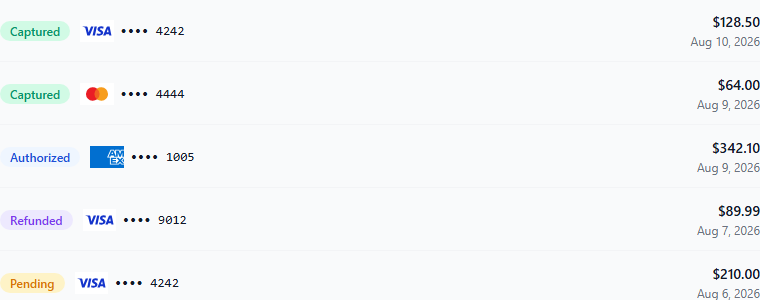
{
  "type": "transactions",
  "referenceId": "ORD-20240601-001",
  "expiresInSeconds": 3600
}
Payment method management session
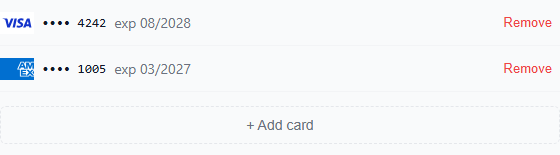
{
  "type": "payment-methods",
  "buyerEmail": "buyer@example.com",
  "expiresInSeconds": 3600
}
Add card session
Tokenization only — this token cannot list or delete the buyer's existing stored cards, unlike
payment-methods above. Use this alongside your own saved-card picker UI.
The form collects card number, expiry, security code, and cardholder name (required).
Same first-time storage-consent screen as the full checkout iframe (see "First-time storage consent screen" under Desktop — embedded iframe above) — buyer-global, one-time, and never shown again for that buyer afterward on this or any other merchant's checkout or widget.
{
  "type": "add-card",
  "buyerEmail": "buyer@example.com",
  "expiresInSeconds": 3600
}
Rep card selection session
For a sales rep entering an order with the buyer not present: the rep picks one of the buyer's saved
cards (from their whole wallet) for an existing pending, manual-capture payment request. The card is
attached as paymentMethodId would attach it, you receive payment_request.completed, and you
authorize and capture as usual. Nothing about the card needs storing on your side. See
Rep mode in the API reference.
{
  "type": "select-card",
  "paymentRequestId": "01a0d890-c74d-7b8c-8089-69ed35729c08"
}
When the buyer needs a new card, the rep can Email a payment link from the widget: the buyer gets
this request's link and enters a card themselves. When the retailer is present, use the normal
checkout instead, so they enter or confirm the card themselves; Use a new card raises
onNewCardRequested for exactly that.
Which flow to use comes down to whether the cardholder is there when the payment is entered. Most of the time they are, so checkout is the default; rep card selection is for the times they aren't. The same applies in every app, web or native:
| Situation | Use | Why |
|---|---|---|
| A retailer logged in, placing their own order | Checkout, on their own screen | They're the cardholder, so they confirm the card themselves (CVC, and 3DS if asked) |
| A rep placing the order with the buyer there | Checkout, handed to the buyer | The same protection; this is the usual rep case |
| A rep placing the order, buyer not there, a saved card is fine | Rep card selection | No CVC or 3DS is asked: a charge of a card on file, so less protection if it's disputed |
| A rep placing the order, buyer not there, a new card is needed | Email a payment link (in the widget, or Send Payment Link) | Only the cardholder can enter a card; the order waits until they do |
Merchant dashboard session
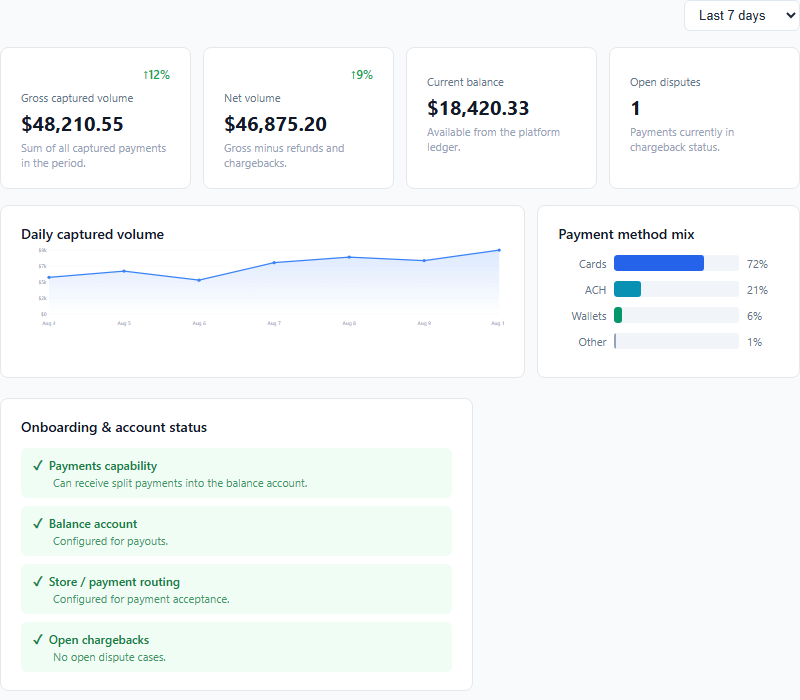
The dashboard also embeds Adyen's hosted Transactions, Disputes, Payouts, and Reports overviews below the summary shown above — omitted here since they render only once a merchant's balance account is fully connected.
{
  "type": "dashboard",
  "returnUrl": "https://yourapp.example.com/settings/payments",
  "expiresInSeconds": 3600
}
Onboarding status session
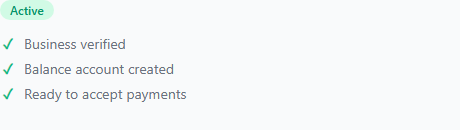
{
  "type": "onboarding-status",
  "returnUrl": "https://yourapp.example.com/settings/payments",
  "expiresInSeconds": 3600
}
returnUrl is where the merchant lands (in the new tab Adyen's hosted onboarding opens) once
they finish or exit onboarding — set it here, at mint time, rather than trusting it from the
browser on each "continue onboarding" click.
Fields
| Field | Required | Description |
|---|---|---|
type |
Yes | "transactions", "payment-methods", "add-card", "dashboard", or "onboarding-status" |
referenceId |
Required for transactions |
Your order/invoice number to look up. |
buyerEmail |
Required for payment-methods/add-card |
Buyer whose stored cards to show, or who the new card being added belongs to. |
returnUrl |
Required for dashboard/onboarding-status |
Where the merchant lands after Adyen's hosted onboarding. |
expiresInSeconds |
No | Token lifetime in seconds. Default 3600 (1 hour). |
Response
{
  "token": "em_abc123...",
  "type": "transactions",
  "expiresAt": "2024-06-01T13:00:00Z"
}
JS SDK
The SDK hosts embed widgets, not checkout.
FoundryEmbed.mountloads an embed session (/embed/{token}) and surfacesonReady,onCardAdded,onCardRemoved,onCardSelected,onNewCardRequested,onPaymentLinkSentandonError. It does not load a payment request'siframeUrl, and it does not surfacefoundry:complete. For checkout, embediframeUrldirectly and listen for that event yourself — see "Listen for the completion event" above. Tell us if you would rather drive checkout through the SDK too; it is not something you are missing today.
Include the SDK from the Foundry Pay CDN and call FoundryEmbed.mount:
<script src="https://checkout.pay.emun1.com/foundry-embed.js"></script>
<script>
  const embed = FoundryEmbed.mount('#container', 'em_abc123...', {
    onReady:       () => console.log('component loaded'),
    onCardAdded:   (card) => {
      // card: { paymentMethodId, brand, last4, holderName, expiryMonth, expiryYear }
      // Same fields as the payment iframe's foundry:complete event — never a card number or token.
      saveCardToYourOwnPicker(card);
    },
    onCardRemoved: (paymentMethodId) => refreshBuyerProfile(),
    onError:       (msg) => showError(msg),
  });

  // To remove the component later:
  embed.unmount();
</script>
The #container element can be any block-level element. The SDK inserts a borderless iframe
that resizes automatically to fit its content.
Options
| Option | Description |
|---|---|
onReady |
Called once when the component has fully loaded and rendered. |
onCardAdded |
Called when the buyer successfully adds a new card, with the full card summary (paymentMethodId, brand, last4, holderName, expiryMonth, expiryYear). |
onCardRemoved |
Called when the buyer removes a saved card, with that card's paymentMethodId. |
onCardSelected |
Rep mode: a saved card was attached to the payment request, with paymentRequestId and the card summary. |
onNewCardRequested |
Rep mode: the rep chose Use a new card. Open the checkout for a buyer who's present. |
onPaymentLinkSent |
Rep mode: the buyer was emailed this request's payment link, with paymentRequestId. |
onError |
Called with a human-readable message whenever card entry fails to complete — the session couldn't be created, the card was declined, the entered details didn't validate, or the card form failed to render. |
Server webhook on card add
When a buyer adds a card through the payment method management or add-card component, Foundry Pay
fires the standard card.enrolled webhook to your configured URL. To collect
payment later, pass the webhook's paymentMethodId straight to POST /v1/payment-requests (see
Reusing a Stored Card) — the request comes back already Collected, no
buyer interaction needed. paymentMethodId alone never charges anything by itself; you still call
POST /v1/payments to actually authorize.
Publishable Keys — True Client-Side Tokenization
If your integration needs to add a card with zero backend involvement — no server call to mint
a token first — ask us for a publishable key instead of your normal (secret) API key. A
publishable key is safe to embed directly in your page's JavaScript: it can only create add-card
embed sessions, for merchants explicitly linked to your partner account, from a fixed list of
domains you register it against. It cannot list or delete a buyer's stored cards, and it cannot do
anything else in the API.
<script>
  fetch('https://pay.emun1.com/v1/embed-sessions', {
    method: 'POST',
    headers: {
      'Content-Type': 'application/json',
      'Authorization': 'ApiKey fpy_pk_...',   // your publishable key — safe to ship in this file
      'X-Merchant-Id': merchantId,            // which of your linked merchants this card belongs to
    },
    body: JSON.stringify({ type: 'add-card', buyerEmail }),
  })
    .then(res => res.json())
    .then(({ token }) => FoundryEmbed.mount('#container', token, {
      onCardAdded: (card) => saveCardToYourOwnPicker(card),
      onError:     (msg)  => showError(msg),
    }));
</script>
A few things worth understanding about how this key actually works, so you don't rely on it for more than it provides:
- Domain restriction limits misuse, it doesn't authenticate the caller.
Originis a header the browser sets and any non-browser client can fake — a publishable key defends against the key being scraped from your page and reused elsewhere, not against a determined attacker who already has the key value. - We don't verify
buyerEmailbelongs to whoever's submitting it. Treat it as a label for your own bookkeeping, not proof of identity — the same is true ofpaymentMethodId. Establish real trust before you actually charge a card (POST /v1/payments), which still requires your normal secret key. - Rate limits are tighter on a publishable key than a secret key, since it's exposed to anyone who loads your page rather than held by one backend service.
Publishable keys are provisioned by Foundry today (contact support with the domain(s) you need registered) — ask if you need to add or change an allowed domain later.
Security
- Never create embed tokens in the browser with your secret API key.
POST /v1/embed-sessionsrequires either your secret key (server-side only) or a publishable key scoped toadd-cardonly — see Publishable Keys above for the one case where minting from the browser is intentional and safe. - Each token is scoped to a single type,
referenceIdorbuyerEmail, and merchant. A token forreferenceId: "ORD-001"cannot be used to view transactions for any other reference. Anadd-cardtoken specifically cannot list or delete the buyer's other stored cards — if you need that separation, mintadd-cardrather thanpayment-methods. - The component iframe is hosted on the Foundry Pay domain. Your JavaScript cannot read its contents across origins — the same cross-origin boundary as the payment iframe.
- Tokens expire. Generate a fresh one each time a user loads a page that contains the embed.
Native iPad and iPhone Apps
Checkout and every embed widget work inside a native Swift app. You show them in a web view, and
your app hears the same foundry:* events a web page does. This has been run end to end on the iPad
and iPhone simulators (iOS 27) against nonprod: checkout, rep card selection, transaction history,
payment method management, onboarding status and the merchant dashboard.
The shape of it
Your app ──►  your backend  ──►  POST /v1/payment-requests  or  POST /v1/embed-sessions
                    ◄── iframeUrl, or token → https://checkout.pay.emun1.com/embed/{token}
Your app ──►  web view loads that URL directly (top level)
Web view ──►  foundry:* events ──► a small bridge script ──► your Swift code
- Your backend creates every URL. The app asks your own backend for a checkout or widget URL;
your backend calls Foundry with your API key. Never ship the API key inside the app — anything in
an app bundle can be extracted. Publishable keys
don't fit here either: they're checked against the browser's
Originheader, which a native app doesn't send. - Load the URL itself, not a page of your own that frames it. Point the web view straight at the
iframeUrlor/embed/{token}URL. Loaded at the top level, the page isn't framed, so there's no domain to register with us. If you instead load your own HTML containing an<iframe>, the checkout domain'sframe-ancestorspolicy applies, and a page bundled with the app has no origin we can allow. - Mint a fresh embed token each time the screen opens. Tokens last an hour by default.
Two ways to show checkout
WKWebView (recommended) |
SFSafariViewController |
|
|---|---|---|
| Feels like | Part of your app: your navigation bar, your back button | A Safari sheet over your app |
| Knowing the buyer is done | Instantly, from foundry:complete |
Your backend has to tell you: poll it, or push from the webhook |
| Code | A web view plus a 5-line bridge script (below) | A few lines |
Either way, keep the payment_request.completed webhook as your source
of truth for recording the payment, as on the web: close the screen on foundry:complete, book the
order on the webhook.
Listening for events in a WKWebView
Loaded at the top level, the page is its own parent, so the messages it posts to window.parent
land on its own window. A script injected at document start forwards them to Swift:
import UIKit
import WebKit

final class FoundryWebView: NSObject, WKScriptMessageHandler, WKUIDelegate {
    // Production; nonprod is checkout.nonprod.pay.emun1.com
    static let foundryHost = "checkout.pay.emun1.com"

    // Passes the page's own foundry:* messages through to Swift. `e.source === window` drops
    // messages from frames nested inside the page.
    private static let bridge = """
    window.addEventListener('message', function (e) {
      var d = e.data;
      if (e.source === window && d && typeof d.type === 'string' && d.type.indexOf('foundry:') === 0)
        window.webkit.messageHandlers.foundry.postMessage(JSON.parse(JSON.stringify(d)));
    });
    """

    let webView: WKWebView
    var onEvent: (String, [String: Any]) -> Void = { _, _ in }

    init(url: URL) {
        let config = WKWebViewConfiguration()
        config.userContentController.addUserScript(
            WKUserScript(source: Self.bridge, injectionTime: .atDocumentStart, forMainFrameOnly: true))
        config.preferences.javaScriptCanOpenWindowsAutomatically = true   // see "New windows" below
        webView = WKWebView(frame: .zero, configuration: config)
        super.init()
        config.userContentController.add(self, name: "foundry")   // retains self: remove it when the screen closes
        webView.uiDelegate = self
        webView.load(URLRequest(url: url))
    }

    func userContentController(_ controller: WKUserContentController, didReceive message: WKScriptMessage) {
        // Trust only Foundry's own page, in the main frame.
        guard message.frameInfo.isMainFrame,
              message.frameInfo.securityOrigin.host == Self.foundryHost,
              let data = message.body as? [String: Any],
              let type = data["type"] as? String else { return }
        onEvent(type, data)   // e.g. "foundry:complete" → close the checkout screen
    }

    // New windows: open them outside the web view (see below).
    func webView(_ webView: WKWebView, createWebViewWith configuration: WKWebViewConfiguration,
                 for action: WKNavigationAction, windowFeatures: WKWindowFeatures) -> WKWebView? {
        if let url = action.request.url { UIApplication.shared.open(url) }
        return nil
    }
}
Call webView.configuration.userContentController.removeScriptMessageHandler(forName: "foundry") when
the screen closes; the handler otherwise keeps the web view alive.
Events you'll receive
The same payloads as on the web. You can ignore foundry:resize: it's for sizing an inline iframe,
and a full-screen web view doesn't need it.
| Event | From | Payload |
|---|---|---|
foundry:complete |
Checkout | status, referenceId, paymentMethodId, brand, last4, holderName, expiryMonth, expiryYear (see Desktop — embedded iframe) |
foundry:ready |
Every widget | — |
foundry:card-added |
Payment methods, add card | The card summary, as onCardAdded |
foundry:card-removed |
Payment methods | paymentMethodId |
foundry:card-selected, foundry:new-card-requested, foundry:payment-link-sent |
Rep card selection | As the matching JS SDK options |
foundry:error |
Every widget | A human-readable message |
None of them carries a card number or processor token.
Rep orders: picking a buyer's saved card
Most rep orders are written with the buyer there: hand them the iPad for checkout. When the buyer isn't there, use rep card selection instead (see the table there for which flow fits which situation):
- Your backend creates the order as a manual-capture payment request and keeps its
iframeUrl, then creates aselect-cardembed session for it. - The app loads the
/embed/{token}URL. The rep sees every saved card in the buyer's wallet and taps one. foundry:card-selectedarrives and the request isCollected; capture it as usual. No CVC or 3DS is asked, because it's a charge of a card on file, so when the buyer is there, checkout is the stronger choice.
The widget never opens checkout itself:
- Use a new card sends
foundry:new-card-requested. Only the cardholder can enter a card, so open the order's checkout (theiframeUrlfrom step 1) once the buyer has the iPad, for example after a "Hand the iPad to the buyer" prompt. - Email a payment link emails the buyer the same order's checkout link and sends
foundry:payment-link-sent.
If you swap one page for another inside the same SwiftUI screen (picker → checkout), give the web view
an identity per page, such as .id(url). Otherwise SwiftUI keeps the existing WKWebView and the old
page stays on screen.
Things a web view doesn't do on its own
- New windows. The onboarding status widget's Continue onboarding button opens the
processor's hosted onboarding in a new window. A
WKWebViewignores new windows unless yourWKUIDelegatehandlescreateWebViewWith, as above. Open the URL in Safari or anSFSafariViewController, not in your own web view. The button opens the window only after a short server call, so also setjavaScriptCanOpenWindowsAutomatically, or iOS may treat it as a popup the user didn't ask for. Not yet exercised on iOS: our nonprod test merchant had already finished onboarding. - Downloads. The dashboard's Export and reports download files. A
WKWebViewneeds aWKDownloadDelegatefor those; without one, the tap does nothing. Not yet exercised on iOS. - 3DS. Card challenges normally run inside the checkout page itself. If a payment method does
redirect, the buyer comes back to the request's
returnUrlinside the same web view. LeavereturnUrlunset for in-app checkout, or catch navigation to it in yourWKNavigationDelegateand ask your backend for the status.
Layout
- Give widgets your own margins. The widgets have no outer padding, because they expect to sit inside your page. Inset the web view, or place it in a container with your margins.
- The merchant dashboard is built for tablet width and up. It looks right on iPad in portrait and landscape. In a narrow window (iPad Split View or Slide Over, or an iPhone) its summary tiles get cramped. Checkout and the other widgets work at any width.
Refunds
Refunds can be issued from the Foundry Pay merchant portal (Transactions → select payment →
Refund), or via the API — POST /v1/payments/{id}/refund, in full or in part, using the same
API key as your other calls. See Refund in the API
Reference for the full request/response shape. Capture and Void are also available via API —
see Capture and Void —
as an alternative to triggering them manually from the portal.
Refunds settle asynchronously, and there is no webhook for them: read each refund's status
(Pending, then Processed or Failed) from GET /v1/payments/{id}. Chargebacks (and returned ACH
debits) don't send a webhook either — the payment's status moves to ChargedBack, visible on the same
endpoint and in GET /v1/transactions.
Testing
Foundry's test environment runs on Adyen's own test platform, which requires specific card values — an arbitrary future expiry date or a random CVV (which works on some other processors' sandboxes) will not produce a successful authorization here.
| Card | Number | Expiry | CVV |
|---|---|---|---|
| Visa | 4111 1111 1111 1111 |
03/30 |
737 |
| Mastercard | 5555 5555 5555 4444 |
03/30 |
737 |
To simulate a decline or another specific outcome, use one of the card numbers above (a real success card — Adyen has no separate "declined" card number) but enter one of these values as the cardholder name. Adyen's test environment inspects that field and returns the matching result instead of a real authorization:
| Cardholder name | Result |
|---|---|
DECLINED |
Generic decline |
NOT_ENOUGH_BALANCE |
Insufficient funds |
CARD_EXPIRED |
Expired card |
FRAUD |
Suspected fraud |
ISSUER_UNAVAILABLE |
Issuer unavailable |
See Adyen's full list of test result codes for every other cardholder-name-triggered outcome.
For ACH testing, use routing number 011000138 or 121000358 — any correctly formatted account
number works (e.g. 123456789).
PCI Scope
Foundry Pay is designed to keep your platform at SAQ-A (the lowest PCI DSS compliance tier):
- Card numbers and CVVs are entered directly into the Foundry-hosted iframe on a separate domain.
- Your servers never receive, transmit, or store card data — no full card number, CVV, or Adyen token ever reaches your platform, in a webhook, an API response, or anywhere else.
- The one token that does reach you, by design, is the
gatewayToken(and, for a gateway that returns two,gatewaySubToken1/gatewaySubToken2) fromPOST /v1/payment-requests/{id}/gateway-token, for HostedPCI merchants in Gateway Token mode. It is the vendor's own gateway's token for the card, which you pass to the merchant to charge — not an Adyen or HostedPCI token and not card data. HostedPCI merchants in Processing mode are charged through/v1/paymentsand send you no token. - What you do receive — in the
payment_request.completed/card.enrolledwebhooks and the payment request detail endpoint — is limited to a Foundry-internalpaymentMethodId, card brand, last 4 digits, expiry, and holder name. None of these constitute cardholder data on their own under PCI DSS; they're the same masked/truncated values any receipt or dashboard shows. - Your page's JavaScript has no channel — postMessage or otherwise — into the checkout iframe's content; the checkout page doesn't listen for anything from its parent. The only thing your page still controls is the iframe element's own box (size/visibility/layering), which is why "Embedding integrity" above is a requirement, not a suggestion: it's what keeps that one remaining lever out of scope too.
Errors
Errors return a JSON body with an error field (a few 403/404 responses have an empty body):
{ "error": "Payment request not found or not in collected state" }
| HTTP Status | Meaning |
|---|---|
400 |
Bad request — missing required field or invalid value. |
401 |
Invalid or missing API key. |
403 |
Key not permitted for this action — e.g. a publishable key outside add-card, or a merchant not linked to your partner account. |
404 |
Resource not found. |
409 |
Conflict — e.g. payment request already collected or expired, the merchant can't take payments yet (status: "OnboardingIncomplete", below), or the merchant has no usable fee structure (code: "split_configuration", below). |
422 |
Unprocessable — payment could not be processed (e.g. declined). |
429 |
Rate limit exceeded for your key. Retry after the number of seconds in the Retry-After header. |
502 |
Upstream error from the payment network. Retry after a short delay. |
OnboardingIncomplete — merchant can't take payments yet
Creating a payment request and authorizing a payment are refused with 409 while the merchant hasn't
finished onboarding:
{ "error": "This merchant hasn't completed onboarding yet", "status": "OnboardingIncomplete" }
Wait for the merchant.onboarded webhook. Captures, voids and refunds on
existing payments are not affected.
split_configuration — merchant not configured for payments
A 409 carrying "code": "split_configuration" means the merchant has no usable fee structure, so
Foundry cannot work out how to divide the payment between the merchant and the platform:
{ "error": "No fee rule matches this payment", "code": "split_configuration" }
Foundry refuses the payment rather than sending it without split instructions, because Adyen books an unsplit transaction entirely to the platform — the merchant would be paid nothing. It can be returned by payment creation, authorize and capture.
This is a merchant configuration problem, not a request problem — retrying the same call won't
help, and the fix is on Foundry's side. Report it with the merchant's id and your referenceId.
Support
Contact your Foundry Pay account manager or email support@markettime.com with your
referenceId for any payment-specific inquiries.